The Study Portal is the web-based user-interface (UI) for registering participants and collecting data. Kernel will provide your clinic with a dedicated Study Portal link for any individual studies your organization will run. Save or bookmark this link on the computers used for data collection. It is unique to your site and must not be shared outside your clinic.
.png)
The Portal should be accessed from Google Chrome on a Mac or Windows laptop or desktop.
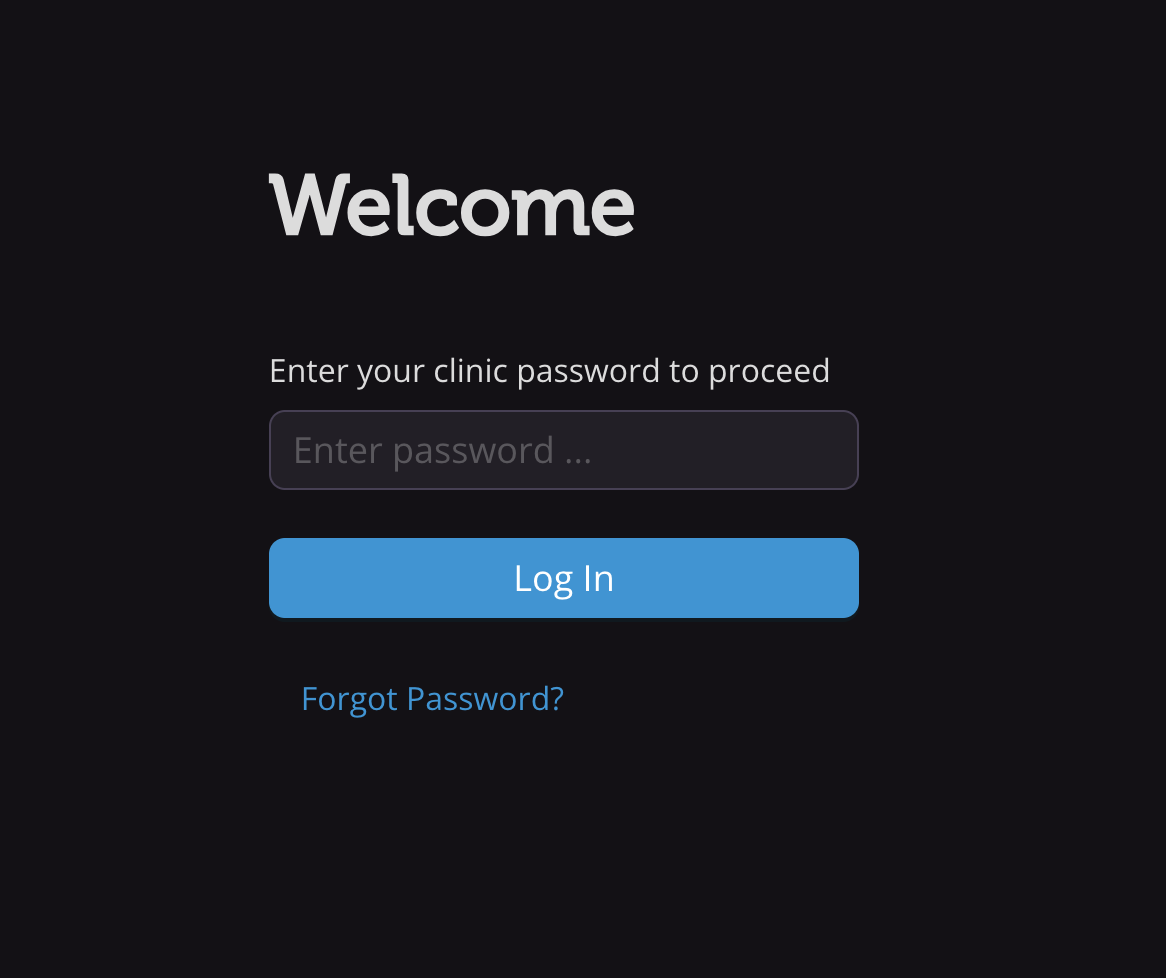
Access to the Study Portal is protected by a password of your choosing, which can be set upon first use via the “Forgot password?” button. All data collectors should know this password. Before each session, the operator will be prompted to enter it.
When a participant arrives for their first study visit, they must be registered in the Study Portal. Registration should occur after eligibility has been confirmed and the Informed Consent Form has been signed.
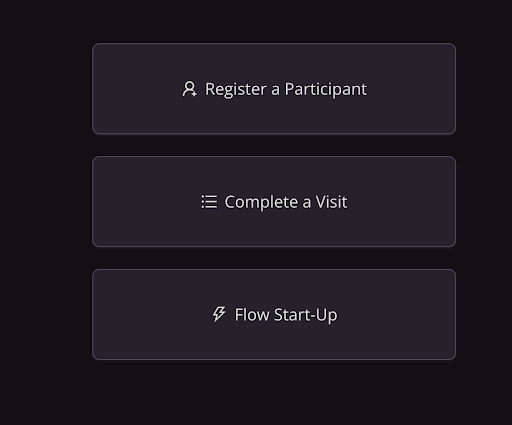
From the main menu, select Register a Participant.
Answer any pre-registration questions. These questions may be defined by Kernel and confirm that the participant has signed the Informed Consent Form and meets the study’s eligibility requirements.
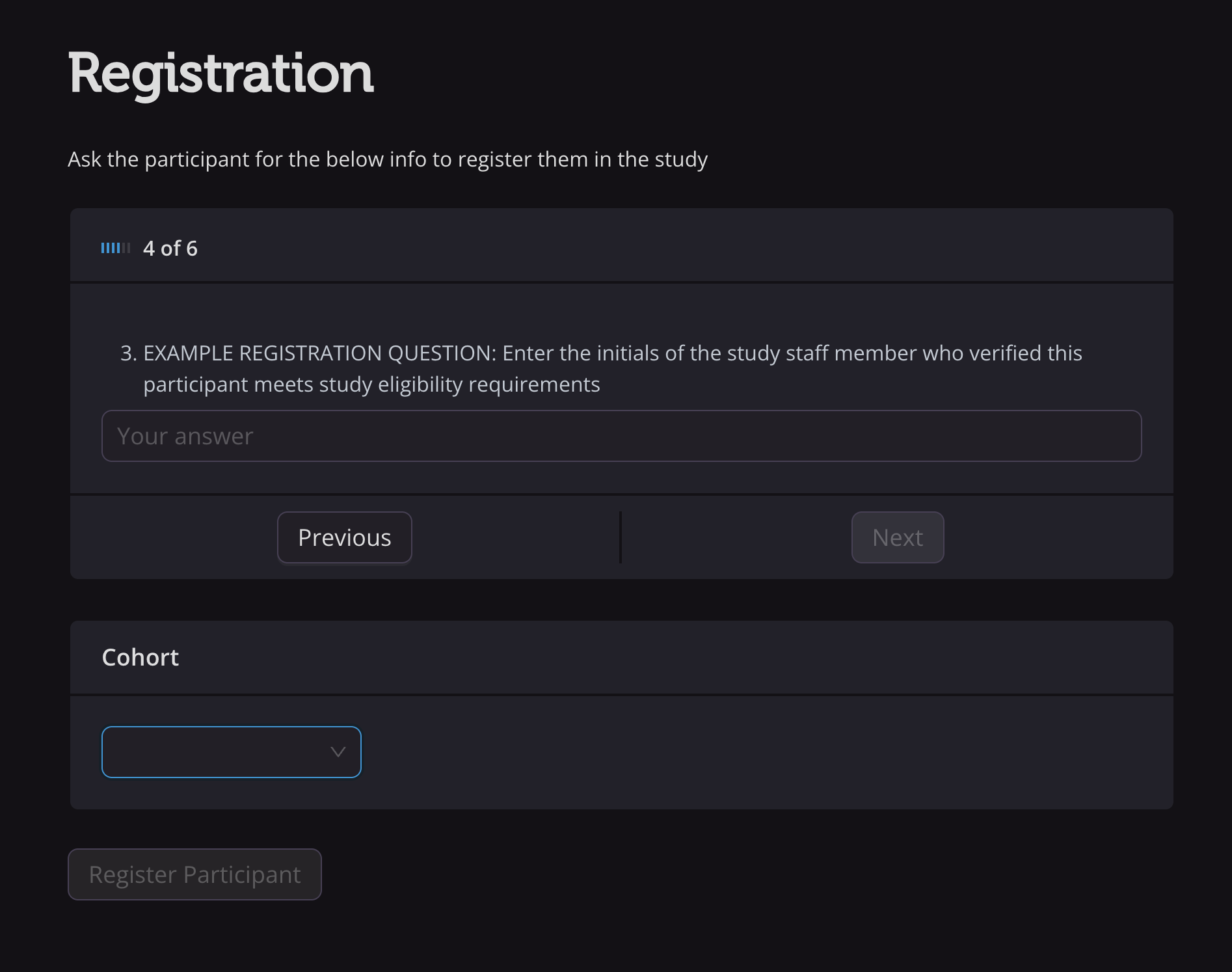
If the study has multiple cohorts, you will be required to select the correct cohort from the dropdown menu. Ensure you select the correct cohort, as this determines which surveys and tasks will be assigned and cannot be changed later. Once all questions have been completed, click Register Participant.
The portal will then generate a Participant ID.
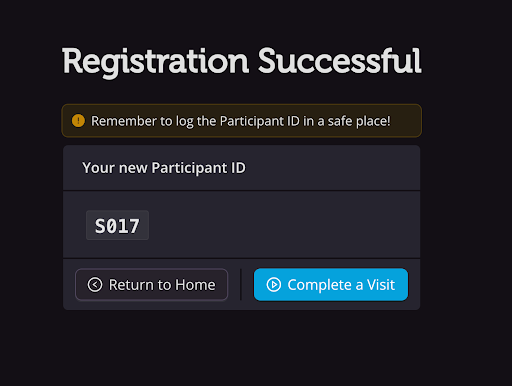
Save the participant ID along with the participant’s full name in a secure location, following your internal protocol for maintaining a subject key.
The Portal does not save or display identifying information. For subsequent study visits, it is your responsibility to match each participant to their correct Participant ID.