.png)
It is recommended to start up the Flow device prior to beginning a study visit. Use the "Flow Start-Up" tab on the main menu of the Study Portal. Refer to Starting up the Flow System.
There are two ways to initiate a study visit:
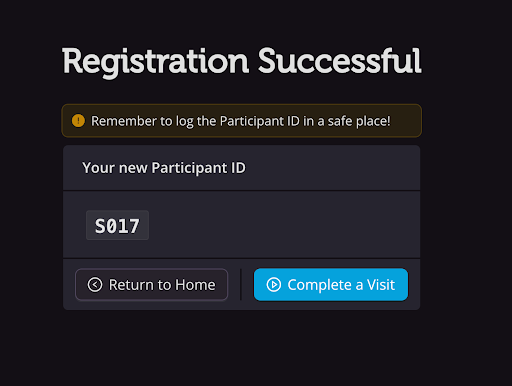
- Immediately after registering a new participant, click "Complete a Visit."
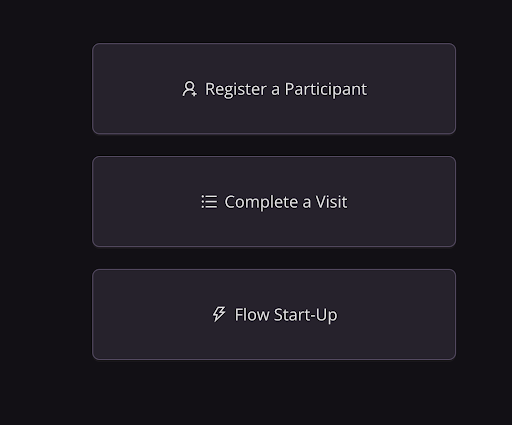
- Click “Complete a Visit” from the main menu.
 You’ll be prompted to select the participant’s ID from a dropdown. Use your clinic’s subject key to locate the correct participant ID.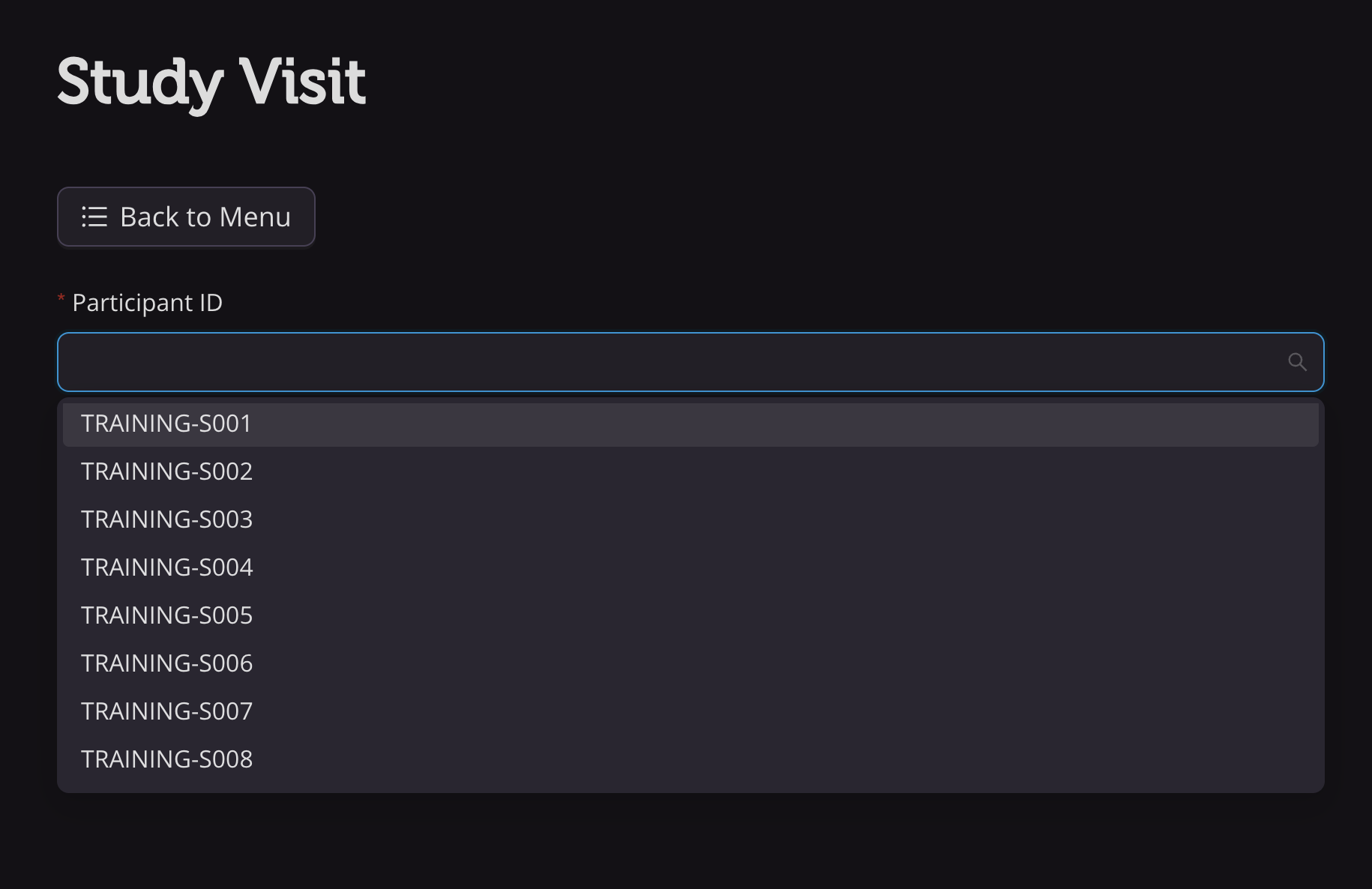
- A confirmation page will be shown to ensure the correct ID has been selected. Any information that was entered upon registering the participant will be displayed under “Participant Details.”
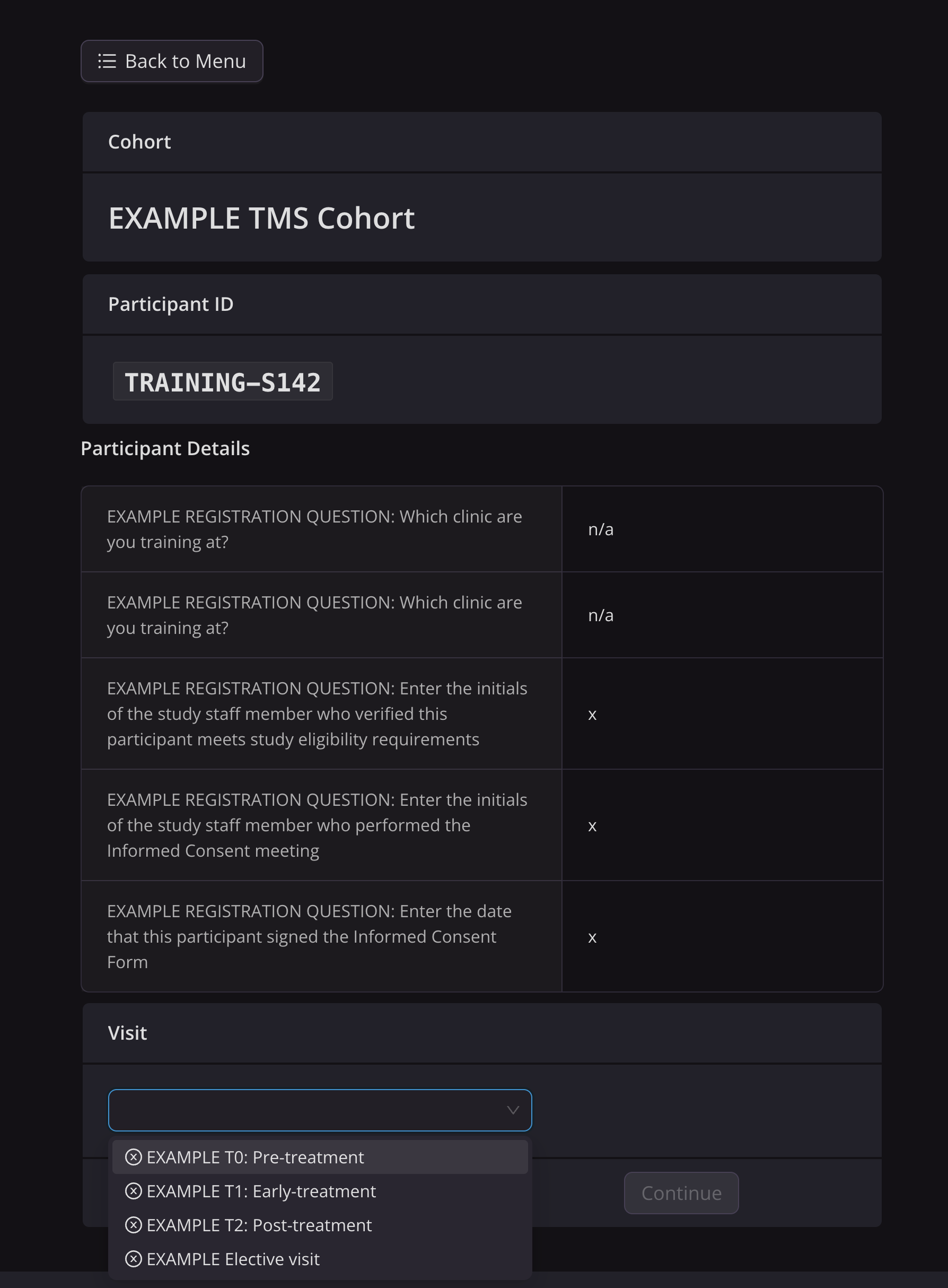
If the study requires multiple study visits, you will be prompted to select the appropriate study visit from a dropdown menu. Only then will you be allowed to continue.
NOTE:Study visits that have previously had any steps completed will display a date and time next to them. This serves as a guide as to what study visits have already been completed and which study visit should be completed next.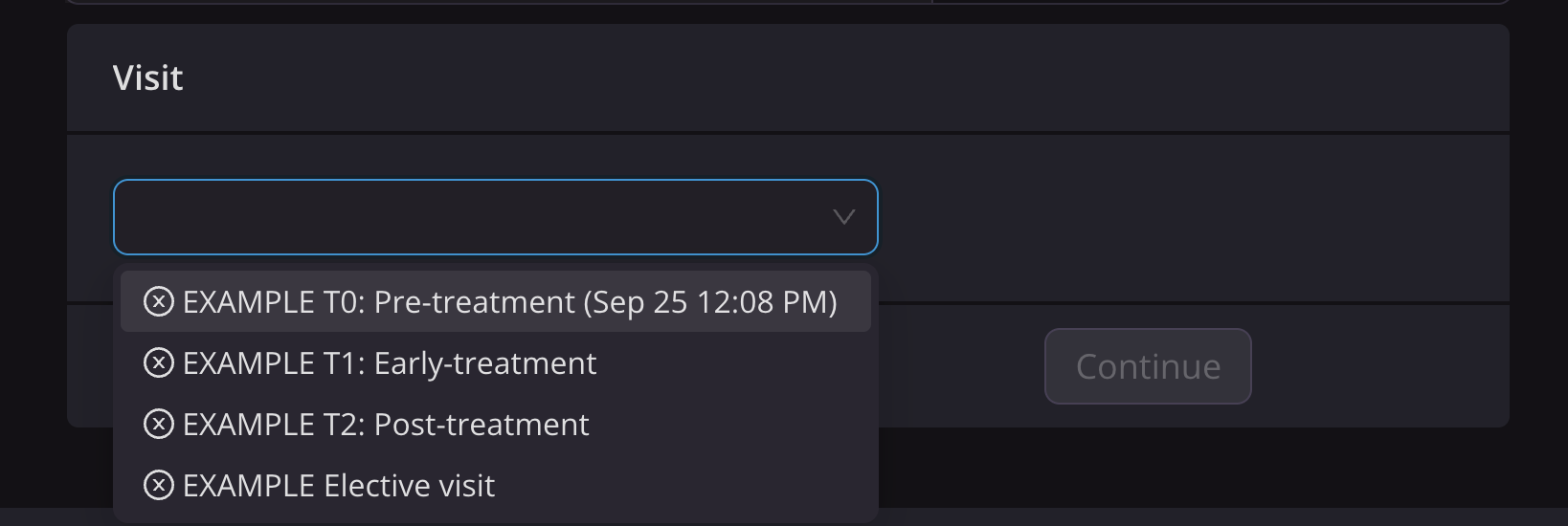
Once the right participant and visit have been selected, press Continue. You will be taken to the participant's study visit checklist. See Checklists.