Outline
- Setting up the Flow 2e System
- Starting up the Flow 2e System
- Using the Flow 2e System
- Turning off the Flow 2e System
- FAQs
Setting up the Flow 2e System
- Plug the female USB-C end of the Power/Data cable (labeled POWER) into the Power Bank, and plug the Power Bank into a wall outlet or power strip.
- Plug the USB-A end of the cable Power/Data cable (labeled COMPUTER) into your data acquisition computer.
- If your data acquisition device has only USB-C ports, use a USB-A to USB-C adapter.
- Plug the EEG dongle into the same data acquisition computer.
- See below for more details.
- Plug the REF and BIAS cables into the headset. See Connecting the EEG components for more info. Then plug the USB-C end of the Power/Data cable (labeled FLOW) into the USB-C connector on the Hub of the headset.
.png)
EEG Dongle
The EEG dongle should be no more than 3 feet from the headset's hub, with a direct line of sight.
Starting up the Flow 2e System
Ensure the dongle is properly oriented
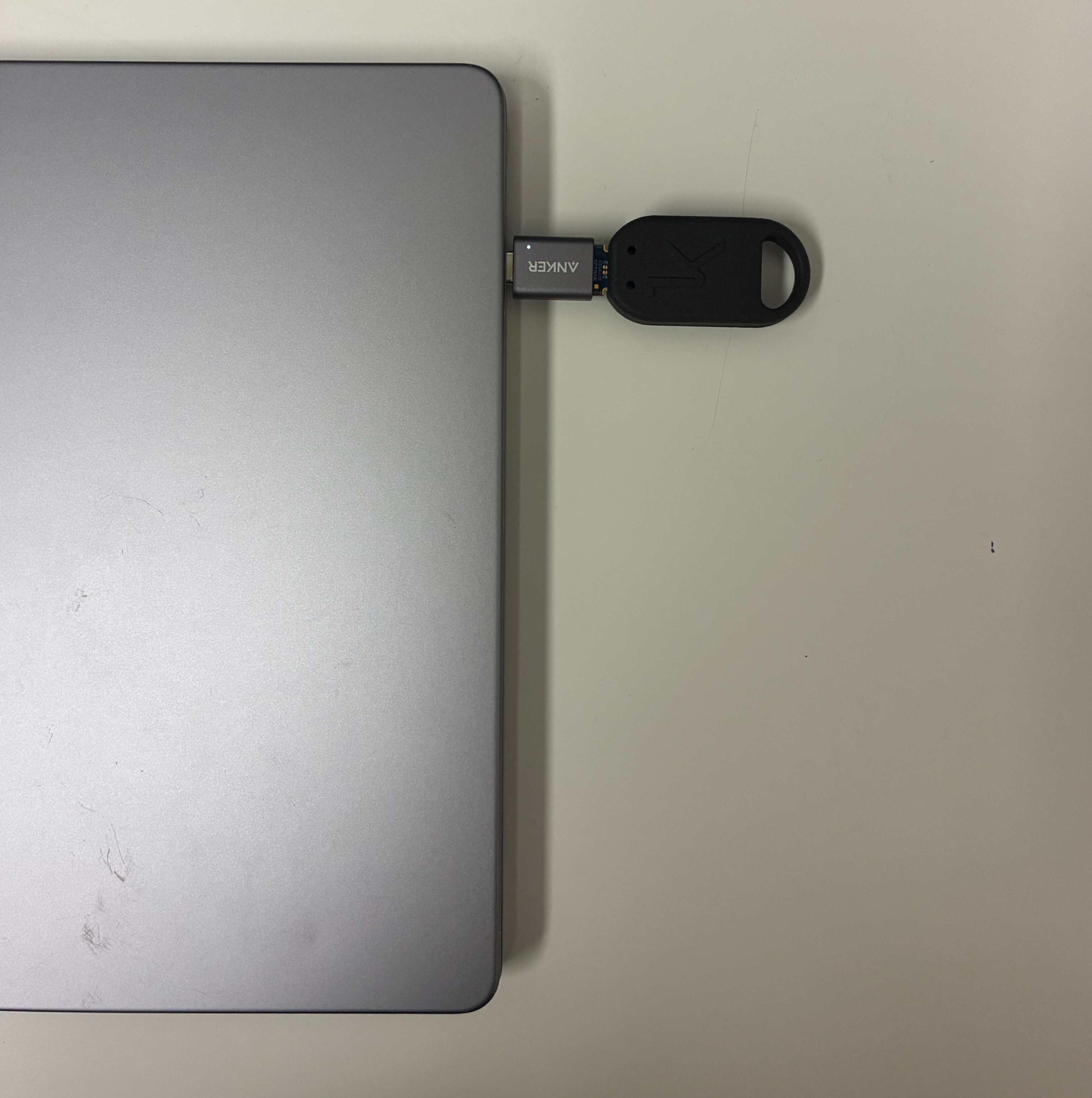
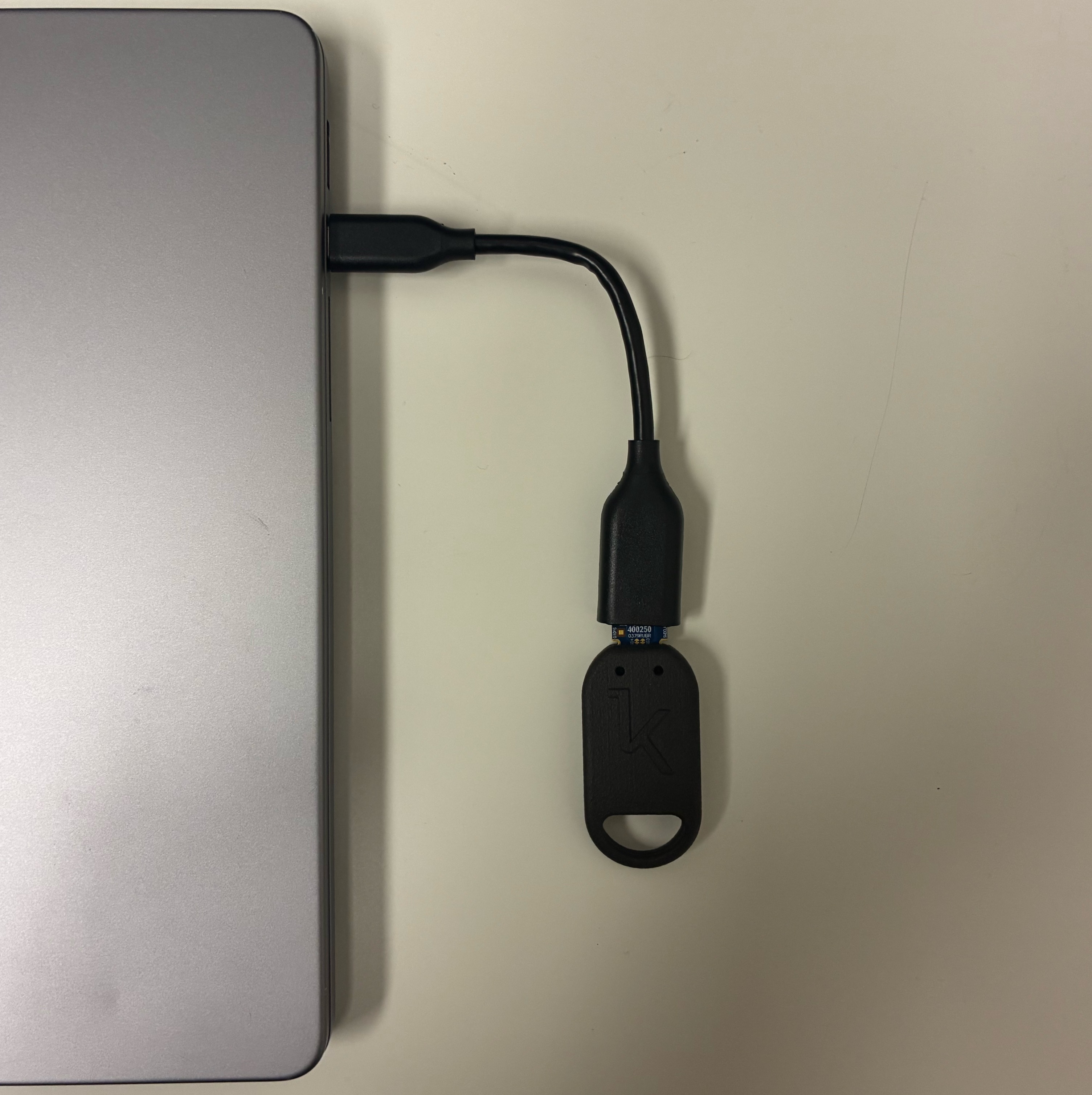
- Insert the dongle so the gold contacts face the plastic tab (blue in the image below) inside the USB port. If the dongle is inserted upside down, it will fit but will not work.
- The gold contacts are on the same side as the "K" logo. Look into the port, find the plastic tab, and insert the dongle with the logo facing toward the tab
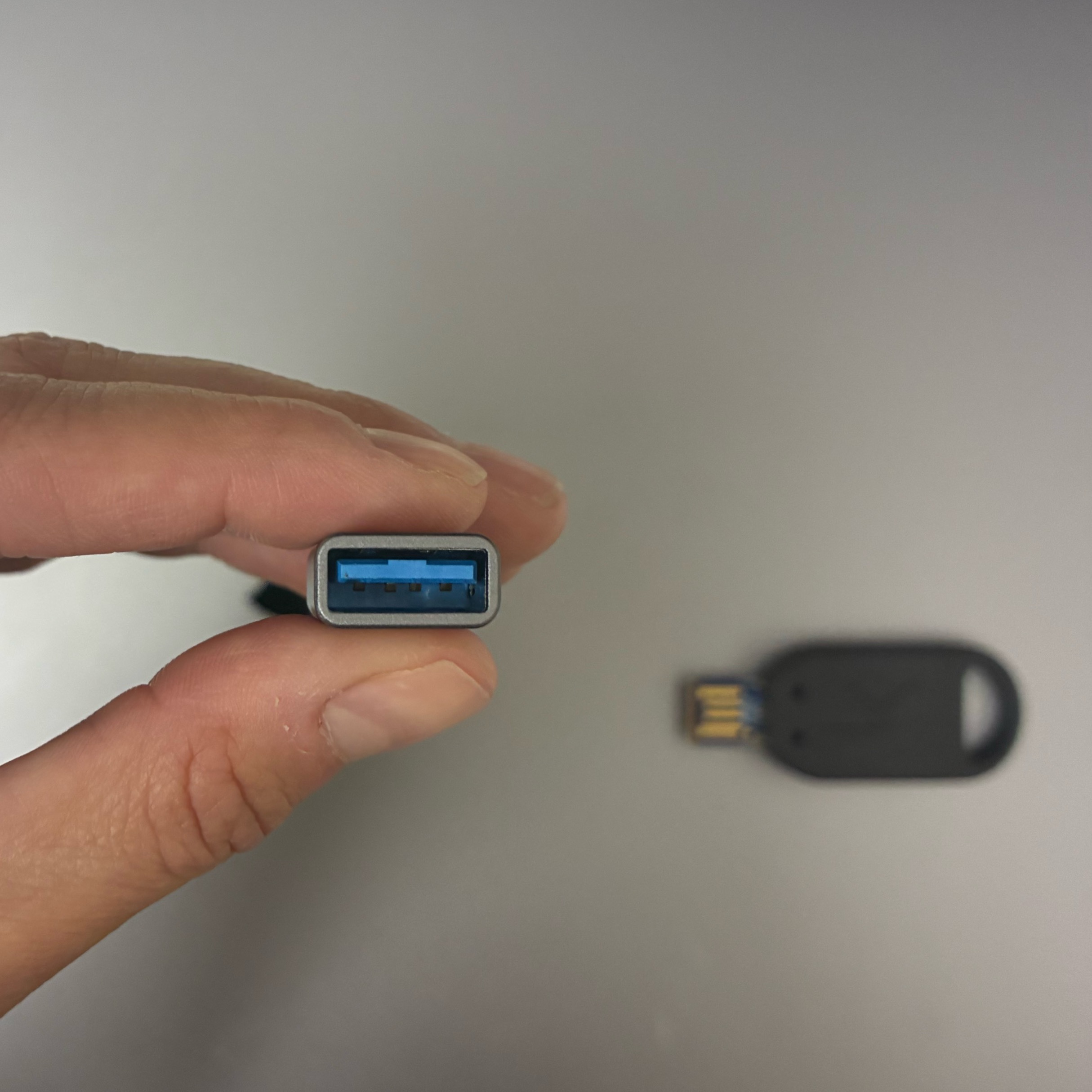
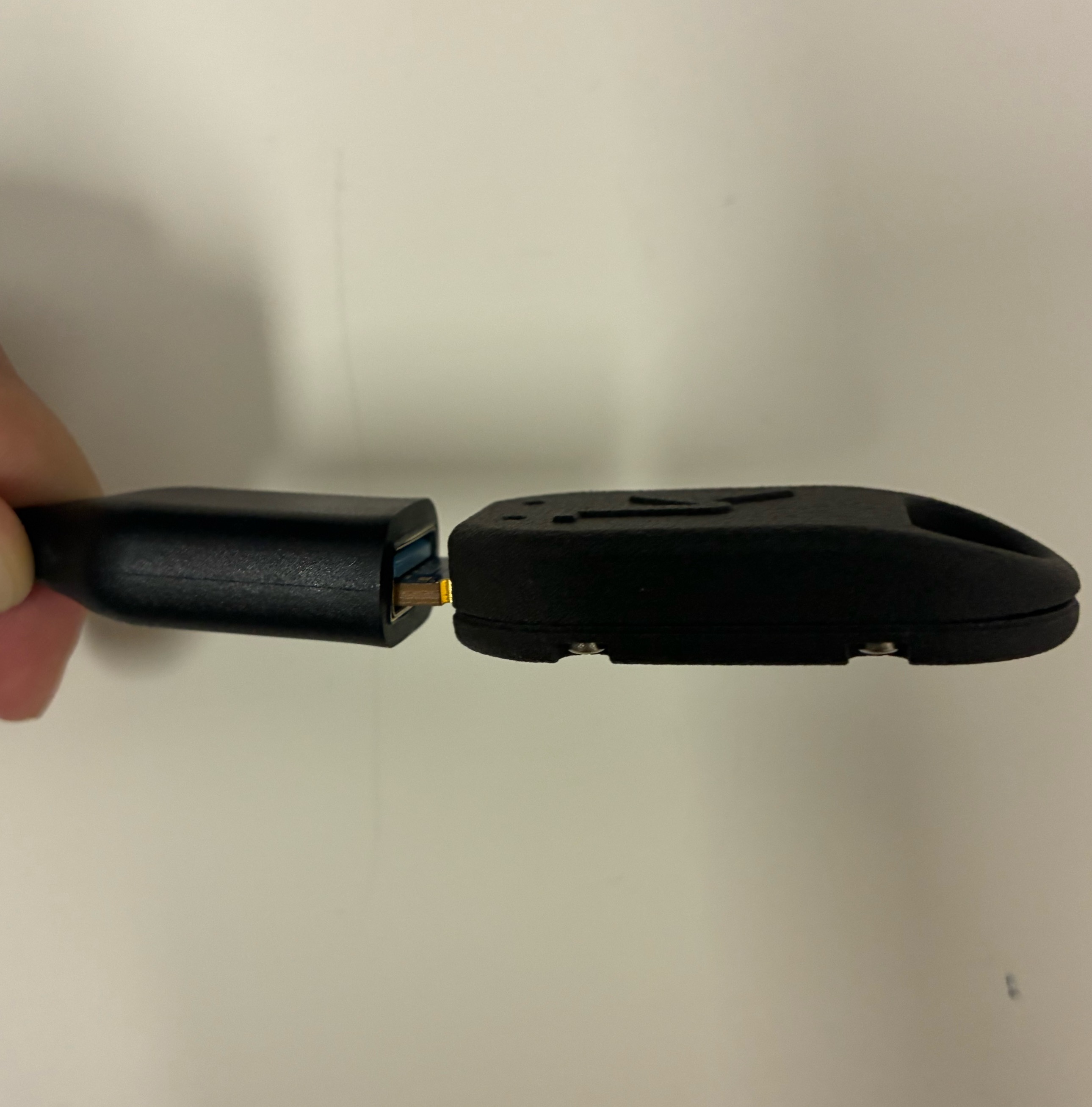
Use an adapter and/or an extender when needed.
Starting up the Flow 2e System
EEG start-up
The EEG system turns on in two ways: (1) automatically when the Flow power cable is plugged in and the headset is on the stand, or (2) with a single press of the power button.
Note: The power button is sensitive, and a light touch can turn the system on by accident, even when the Flow power cable is disconnected.
Turn the EEG off when you're not using it. To turn the EEG off, see below.
Note: The power button is sensitive, and a light touch can turn the system on by accident, even when the Flow power cable is disconnected.
Turn the EEG off when you're not using it. To turn the EEG off, see below.
- If the cabling is configured correctly, the system will begin starting up and you will see 3 lights turn on automatically.
- RED hub light: This indicates EEG is on. Note: EEG automatically turns on once the Flow cable is plugged into the hub and the headset is on the stand.
- BLUE headset stand (HSS) light: This indicates that the EEG is charging. Note: EEG charges through the HSS.
- PURPLE hub light: This is the light for the EEG power button.
.png)
- Navigate to your portal and click the Flow tab as the system begins booting up automatically.
- Notice there are 3 displays of the headset you can view: (1) Flow Modules + EEG, (2) Flow Modules only, and (3) EEG only.
.png) Verify that the headset is seated and tightened on the Headset Stand.
Verify that the headset is seated and tightened on the Headset Stand.- Reduce any ambient light in the room by turning off overhead lights, closing window coverings, or minimizing other light sources.
- Click Initialize. Initialization takes about 2 minutes. The headset should NOT be removed from the stand during this time, as lasers are firing.
Using the Flow 2e System
Ensure that lasers are off by using the Turn Lasers OFF button on the Portal Flow tab before picking up the Flow headset from the Headset Stand. Lasers should be off when transferring the headset to and from the Stand or a head.
Pre-recording
- Place the headset on the participant. See the Flow 2 guide for tips.
- Attach the EEG clips to the participant's earlobes.
- Press the Turn Lasers ON button on the Portal Flow UI to enable the lasers.
- Increase signal quality. See the Flow 2 guide for tips.
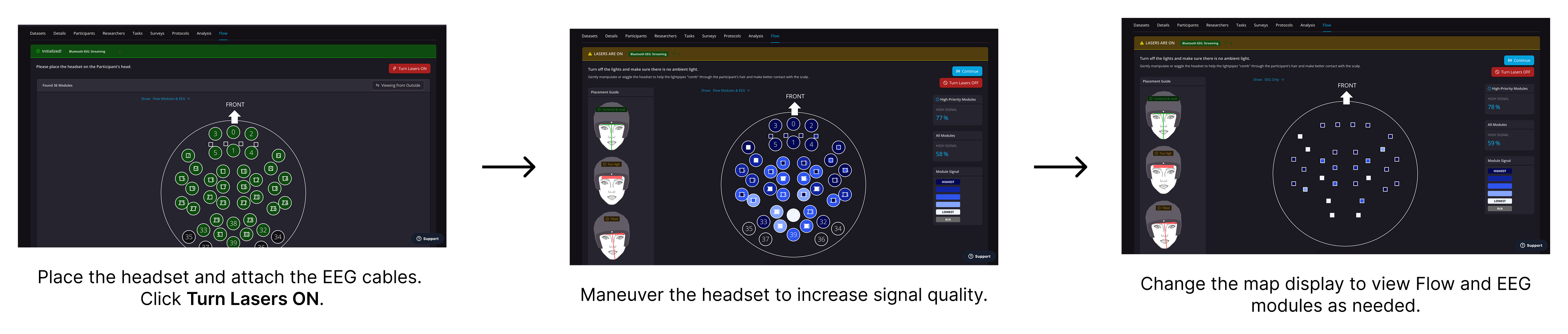 Align and tighten the headset. See the Flow 2 guide for tips.
Recording
- Make sure ambient light in the room has been reduced.
- In the Portal Flow tab, click Continue. This step tunes the lasers to configure the strength of each laser to ensure every detector is receiving an adequately strong signal.
- The Portal Flow UI display will proceed to the Data Acquisition Control Menu (displayed below). You are then ready to record data!

Turning off the Flow 2e System
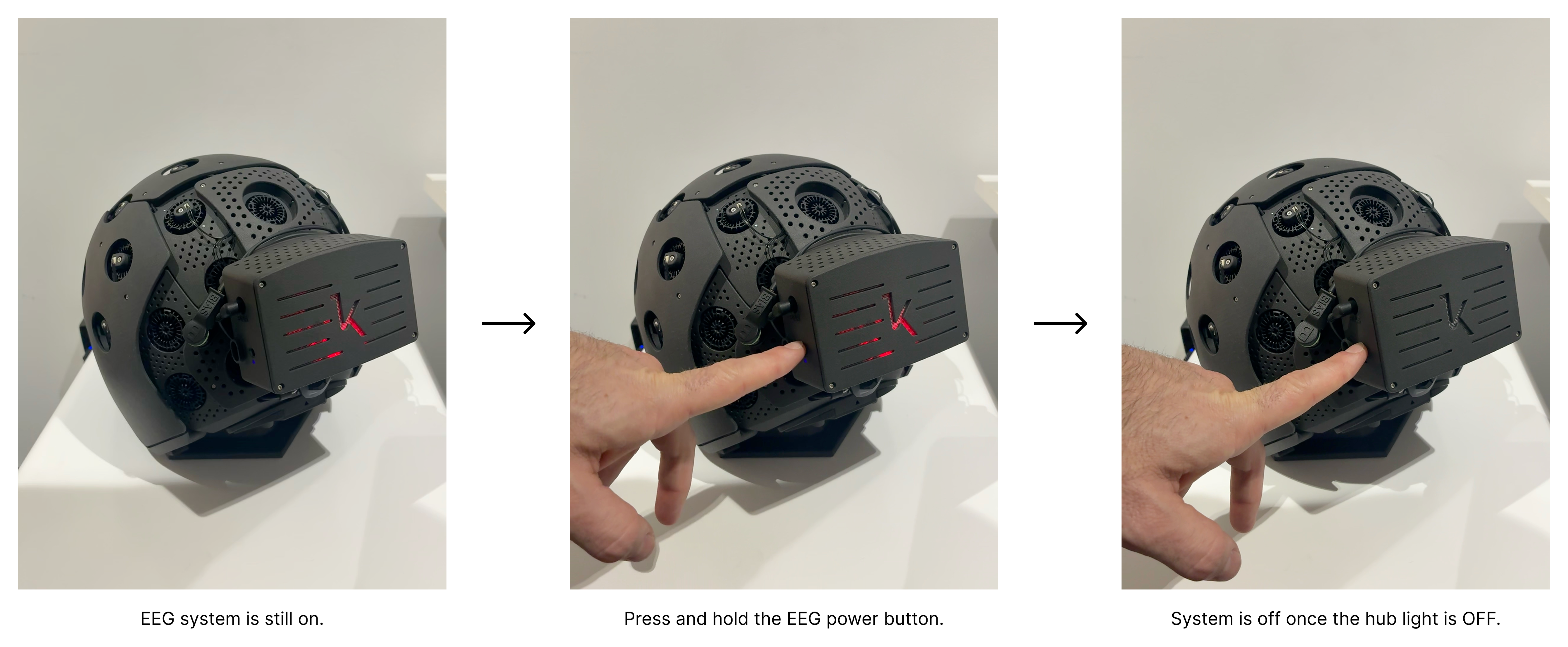
Turning off the EEG system does not happen automatically when you unplug the headset.
You will need to perform this step manually. See the steps below.
- Unplug the Flow cable from the hub.
- To turn off the EEG system, press and hold the purple power button on the left until the red light turns off. Remember, this does not happen automatically.
 Clean the system after each use. See the Flow 2 guide for tips.
- Store the system. See the Flow 2 guide for tips.
FAQs
EEG Battery
- How do I charge the EEG?
- On the headset stand with the Flow power cable plugged in.
- How long does the EEG take to charge?
- Up to 1 hour.
- How long does the battery last?
- Up to 5 hours.
- How do I know how much battery the EEG has?
- The Flow UI displays it.
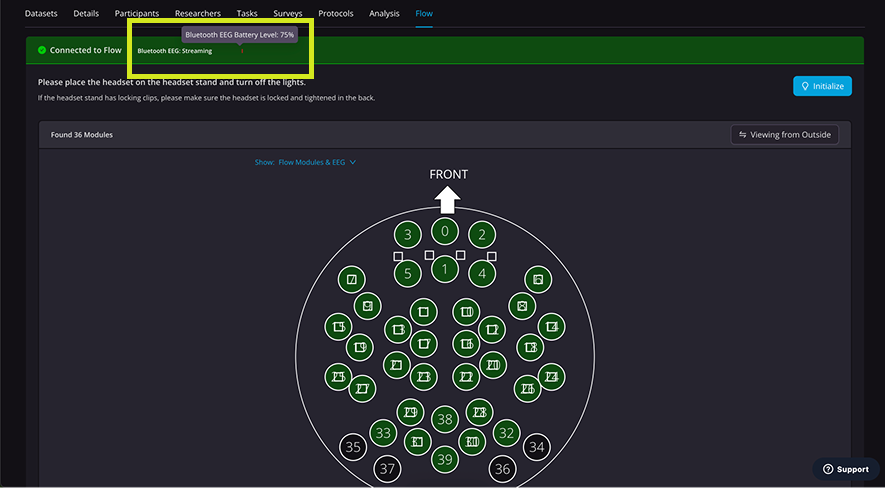
- The Flow UI displays it.
Bluetooth EEG & FlowUI
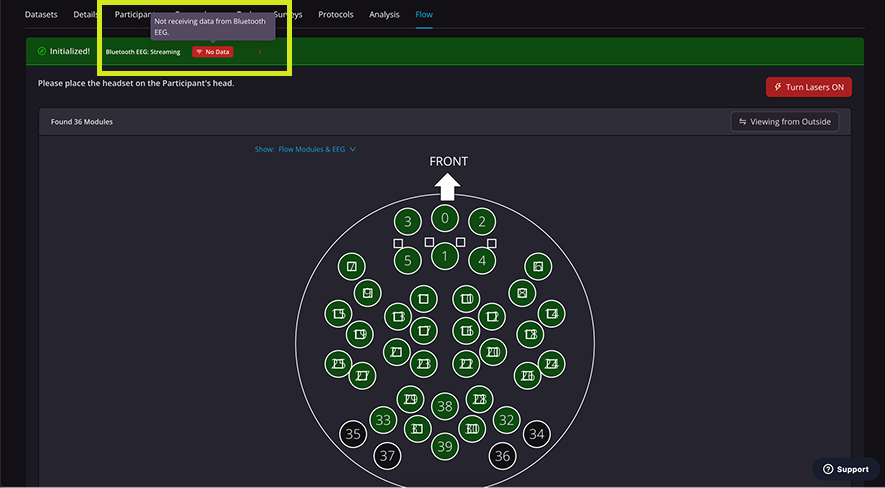
- What does "Streaming" mean?
- Ideal state.
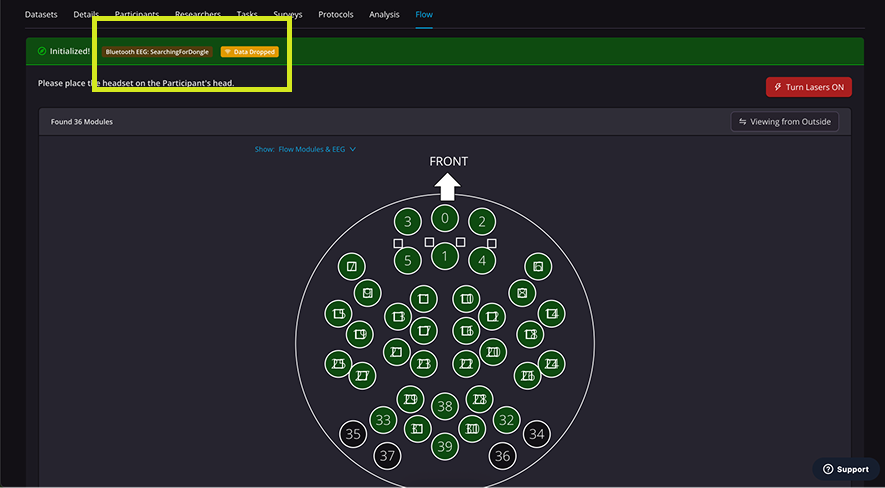
- What does "SearchingForDongle" mean?
- Dongle either isn't plugged in, or it is but not being detected. This is likely due to distance.
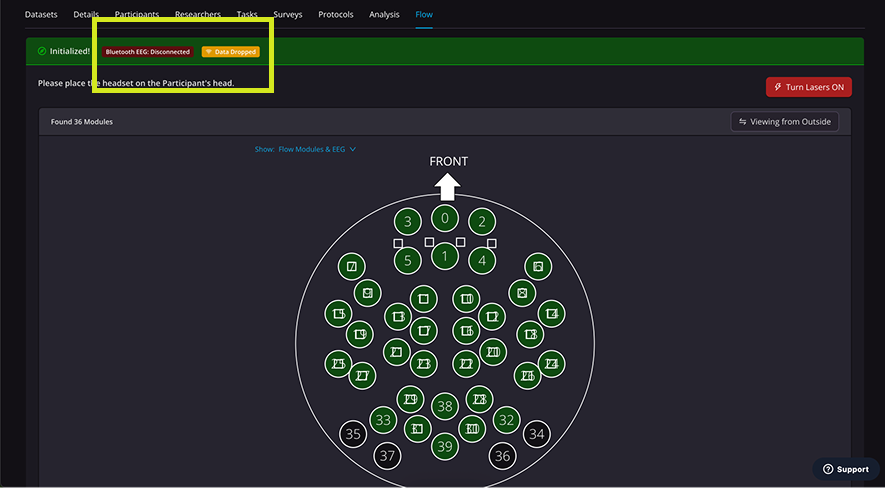
- What does "Disconnected" mean?
- Dongle is either not connected, or it is but it can't connect to the EEG. Again, this is likely due to distance.
- What does "Data Dropped" mean?
- Dongle is connected, and while some data is coming through, there are drops. Likely you need to move the dongle and headset closer to each other, and/or make sure there is a direct line of sight.
- What does "No Data" mean?
- Dongle is connected, but no data is coming through. Try resetting the dongle, make sure to accept any USB permissions, and ensure the dongle and headset are close enough to each other.
.png)